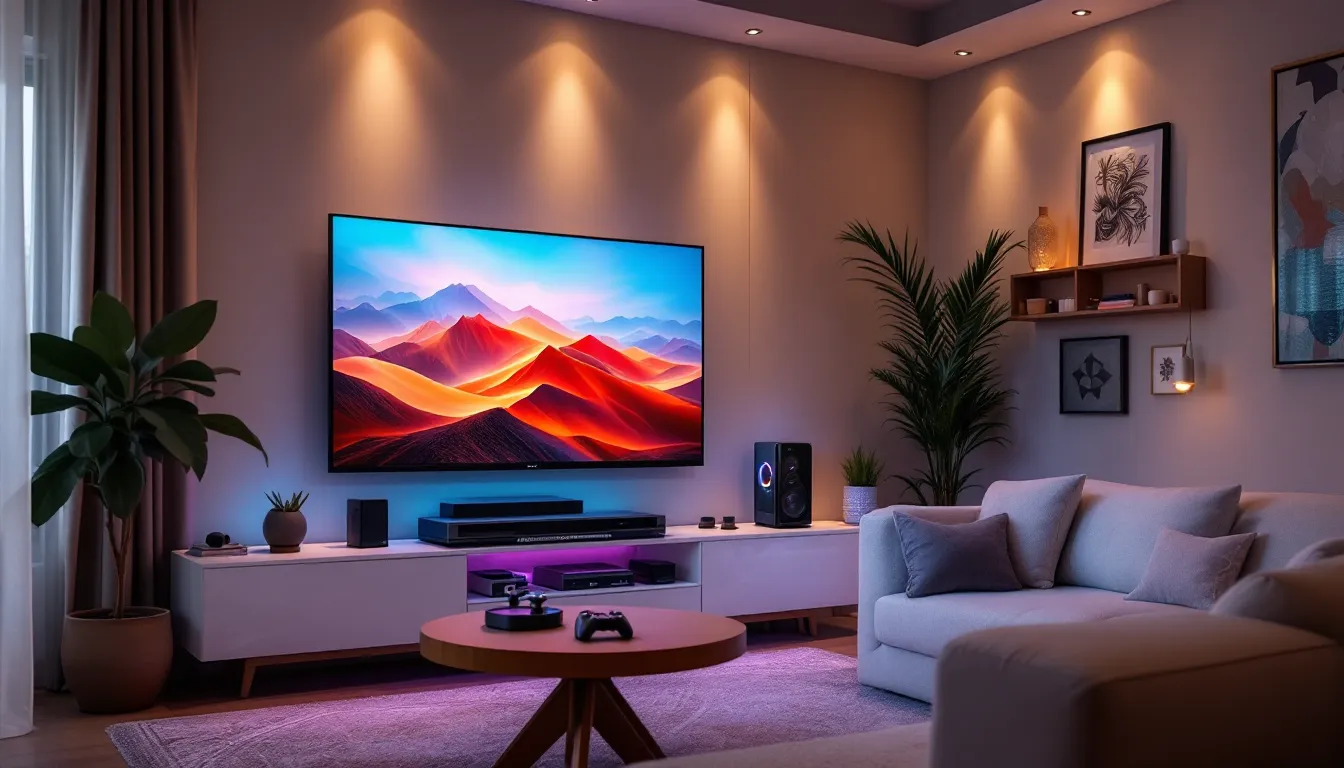
The era of choosing between crisp PC graphics and the comfort of a couch is over. A living room gaming PC bridges that gap, delivering the visual fidelity and performance of desktop gaming while fitting seamlessly into an entertainment center. Whether someone’s tired of being hunched over a desk or wants a single machine that handles AAA titles at 4K, streams content, and boots up without disrupting the living room aesthetic, this setup has become increasingly practical.
Building a living room gaming rig isn’t just downsizing a traditional tower. It requires thoughtful component selection to manage thermals in compact spaces, wireless peripherals that don’t clutter the coffee table, and software optimization for a big-screen experience. In 2026, with small form factor (SFF) cases offering better airflow than ever and GPUs pushing native 4K at 120Hz, the living room gaming PC has evolved from enthusiast experiment to legitimate mainstream option. Here’s everything needed to build one right.
Key Takeaways
- A living room gaming PC delivers superior graphics, upgradability, and flexibility compared to consoles, with no subscription fees and access to modding communities that significantly extend game longevity.
- Small Form Factor and HTPC cases under 20 liters, paired with compact GPUs like the RTX 5070 and low-power CPUs like the Ryzen 7 9700X, enable 4K gaming without sacrificing thermals or living room aesthetics.
- Proper HDMI 2.1 connection, Game Mode activation, and Windows scaling optimization (150–175%) are essential for delivering responsive gameplay and readable interfaces on 55+ inch displays viewed from the couch.
- Steam Big Picture Mode with controller-first navigation and custom input mappings transforms the living room gaming PC setup into an accessible, console-like experience without touching a keyboard.
- Strategic component selection—quiet Noctua fans, semi-passive PSUs, and noise-optimized GPU coolers—combined with discrete cable management keeps the living room gaming PC acoustically pleasing during extended sessions.
- Beyond gaming, the living room PC doubles as a Plex media server, streaming hub, emulation station, and home theater PC, justifying the investment through versatility that single-purpose consoles cannot match.
Why Choose a Living Room Gaming PC Over a Traditional Console?
The PS5 and Xbox Series X deliver solid performance, but a living room gaming PC offers advantages that extend beyond just raw specs. It’s about control, over settings, upgrades, game libraries, and how the system gets used beyond gaming.
Performance and Flexibility Advantages
Consoles target stable frame rates at specific resolutions, but they’re locked into hardware that won’t change for years. A living room gaming PC lets gamers push settings higher, enable ray tracing without frame rate compromises, or dial down graphics for competitive 240Hz gaming on compatible displays. Games like Cyberpunk 2077 or Starfield see noticeable visual differences between console medium-high presets and PC ultra settings with DLSS 3.5 or FSR 3.1.
Beyond graphics, there’s flexibility in input methods. Switching between controller for Elden Ring, mouse and keyboard for Counter-Strike 2, or racing wheel for Gran Turismo ports happens seamlessly. Modding support opens up entire communities, Skyrim Anniversary Edition or Baldur’s Gate 3 transform with texture overhauls, quality-of-life tweaks, and content expansions that consoles will never see.
Backward compatibility isn’t generational: it’s comprehensive. That Steam library from 2010 still works, often with improved performance on modern hardware. Epic Games Store freebies, Game Pass for PC, GOG classics, they all run on the same machine without repurchasing.
Cost-Effectiveness Over Time
The upfront cost of a living room gaming PC typically exceeds console pricing, but the math shifts over a 5-7 year lifecycle. No paid online subscriptions, PS Plus Essential costs $80/year, Xbox Game Pass Ultimate runs $17/month. That’s $480-$1,020 over five years just for online access and monthly games.
Game prices favor PC. Steam sales, Humble Bundles, and key resellers offer discounts that console digital stores rarely match. A new AAA title might cost $70 on PlayStation but drop to $45 within weeks on PC through legitimate retailers. Free-to-play games like Valorant or Lost Ark run better with uncapped frame rates and mod support.
Upgrade paths matter. When a GPU feels sluggish in three years, swapping it costs less than buying a mid-generation console refresh. The rest of the system, CPU, RAM, storage, case, carries forward. Consoles require full replacement or accepting degraded performance as new titles push older hardware.
Essential Components for a Living Room Gaming PC Build
Component selection for a living room build balances performance, thermal efficiency, and physical footprint. Unlike traditional towers with ample airflow space, compact cases demand intentional hardware choices.
Choosing the Right Case: SFF, HTPC, and Compact Options
Case selection dictates the entire build. Small Form Factor (SFF) cases like the Fractal Design Terra or NZXT H1 v2 keep volume under 20 liters while supporting full-size GPUs up to 330mm. These stand vertically and blend with AV equipment better than horizontal towers.
HTPC-style cases like the Silverstone Grandia series or Jonsbo N3 lie horizontally beneath TVs, mimicking receiver dimensions. They typically measure 15-17 inches wide but only 4-6 inches tall. GPU clearance becomes the limiting factor, most cap at dual-slot cards around 310mm length.
Mini-ITX motherboards power most living room builds, though some HTPC cases accommodate Micro-ATX. The Lian Li A4-H2O supports 280mm AIOs even though its 11-liter volume, while the Cooler Master NR200P offers tool-free glass panels and space for tower coolers up to 155mm.
Cable management matters more in tight spaces. Cases with PSU shrouds, velcro straps, and pre-routed channels prevent airflow blockage. The Louqe Raw S1 and Dan Cases A4-SFX pioneered sandwich layouts that separate the GPU and motherboard into distinct thermal zones.
GPU and CPU Selection for 4K Couch Gaming
Most living room setups target 4K60 on large displays, with 1440p120 or 1080p240 as competitive alternatives. For 4K gaming in 2026, the NVIDIA RTX 5070 (12GB VRAM) hits the sweet spot, delivering 60+ FPS in demanding titles with DLSS Quality mode enabled. The AMD Radeon RX 8700 XT (16GB VRAM) competes on price and raw raster performance, especially in FSR-optimized games.
High-end builders eyeing 4K120 or maxed ray tracing should consider the RTX 5080 or RX 8800 XT. These cards justify their cost when paired with OLED TVs supporting 4K120Hz via HDMI 2.1. Compact models like the ASUS Dual or Gigabyte Eagle variants keep length under 300mm while maintaining two-slot thickness, critical for sandwich-layout cases.
CPU demands for couch gaming differ from competitive esports. The AMD Ryzen 7 9700X (8-core, 65W TDP) provides excellent gaming performance with minimal heat output, ideal for compact cooling solutions. Intel’s Core i5-14600K offers similar gaming FPS but runs hotter, pair it with at least a 240mm AIO or high-end air cooler.
For builders prioritizing quiet operation, the Ryzen 7 9700X or Intel Core i7-14700T (35W TDP) deliver surprising performance at lower power envelopes. Gaming benchmarks from Tom’s Hardware show minimal FPS loss compared to their higher-wattage counterparts when GPU-bound at 4K.
Cooling Solutions for Compact Builds
Thermal management makes or breaks SFF builds. Air cooling works if the case supports 120mm+ tower coolers. The Noctua NH-L12S (70mm height) fits nearly any Mini-ITX case and handles 95W TDP CPUs quietly. The Thermalright AXP120-X67 (67mm height) pushes that to 130W with adequate airflow.
Liquid cooling offers better thermal headroom in tight spaces. A 240mm AIO like the Arctic Liquid Freezer III or NZXT Kraken fits most SFF cases and keeps even 125W CPUs under 75°C during sustained loads. The Fractal Design Lumen and Corsair iCUE Link series introduced magnetic quick-disconnects in late 2025, simplifying installation in cramped builds.
GPU thermals depend heavily on case airflow. Sandwich layouts benefit from deshrouding the GPU and mounting slim 120mm fans directly to the heatsink, dropping temps 8-12°C compared to stock coolers. The NZXT H1 v2’s riser card positioning creates a natural chimney effect, exhausting GPU heat upward without additional fans.
Undervolting both CPU and GPU reduces heat without sacrificing performance. A -100mV offset on an RTX 5070 typically cuts power draw 15-20W while maintaining the same boost clocks. Ryzen CPUs respond well to PBO2 Curve Optimizer adjustments, shaving 5-10°C off peak temps.
Storage and Memory Considerations
NVMe SSDs are non-negotiable for modern gaming. A 2TB Gen4 drive like the Samsung 990 Pro or WD Black SN850X provides ample space for OS, launchers, and a rotating library of 10-15 AAA titles. Gen5 drives offer negligible gaming improvements over Gen4 in 2026, save the money for GPU upgrades.
Many Mini-ITX boards include two M.2 slots: use both. A 1TB boot drive plus 2TB game library drive costs less than a single 3TB drive while offering redundancy. The backside M.2 slot on boards like the ASUS ROG Strix B650E-I helps with thermals by separating drives physically.
32GB DDR5-6000 (CL30 or better) is the current standard for gaming PCs. Ryzen 7000/9000 CPUs hit their sweet spot at DDR5-6000, while Intel 14th-gen scales to DDR5-7200 with minimal stability issues. For compact builds, low-profile RAM like Corsair Vengeance LPX clears side-mounted coolers and GPU backplates in tight cases.
Setting Up Your Living Room Gaming PC for Optimal Performance
Hardware is only half the equation. Proper setup ensures the living room gaming PC delivers smooth, responsive gameplay on big screens without the quirks that plague poorly configured systems.
Connecting to Your TV: HDMI, DisplayPort, and Refresh Rate Settings
Most 2024-2026 TVs use HDMI 2.1, supporting 4K120Hz, VRR (Variable Refresh Rate), and ALLM (Auto Low Latency Mode). Connect the PC’s GPU directly to the TV via a certified Ultra High Speed HDMI cable, cheap cables cause handshake issues or limit bandwidth to HDMI 2.0 speeds.
Enable these settings in TV menus (names vary by manufacturer):
- Game Mode or PC Mode: Disables motion smoothing and post-processing that add 20-50ms input lag
- VRR/FreeSync/G-Sync Compatible: Syncs refresh rate to GPU output, eliminating screen tearing
- 4:4:4 Chroma: Full RGB color in PC Mode prevents text blur on desktop applications
In Windows display settings, manually verify refresh rate. Many TVs default to 60Hz even when connected via HDMI 2.1. Right-click desktop → Display Settings → Advanced Display → choose 120Hz. NVIDIA Control Panel and AMD Adrenalin offer additional color depth and dynamic range controls, set output to RGB Full (0-255) for proper black levels.
DisplayPort adapters rarely work reliably for 4K120Hz on TVs. Stick with native HDMI connections unless using a monitor with DP input. Some GPUs ship with HDMI 2.1 ports that support Display Stream Compression (DSC), enabling 4K144Hz on compatible displays.
Input lag varies wildly by TV model. OLEDs like the LG C4 or Samsung S95D measure 10-13ms in Game Mode, imperceptible for most gamers. Budget LED panels can exceed 40ms even with optimizations. Testing from Hardware Times shows mid-range TCL and Hisense models hitting 18-25ms, acceptable for single-player games but noticeable in competitive shooters.
Optimizing Windows for Big Screen Gaming
Windows 11’s default UI doesn’t scale well to 55+ inch displays viewed from 8-10 feet. Increase scaling to 150% or 175% in Display Settings to make text and icons readable. Enable Night Light (Settings → Display → Night Light) to reduce blue light during evening sessions without the harsh tint of older f.lux-style filters.
Disable Windows bloat that impacts performance:
- Game Bar (Settings → Gaming → Xbox Game Bar): Uncheck unless actively recording clips
- Background Apps (Settings → Privacy → Background Apps): Limit to essential services only
- Startup Programs (Task Manager → Startup): Disable launcher auto-starts except preferred platform
- Visual Effects (System Properties → Advanced → Performance Settings): Set to “Adjust for best performance” or custom disable animations
Set a custom resolution in GPU control panels if native 4K taxes the system. Running games at 1440p with 125% or 150% UI scaling balances performance and sharpness. NVIDIA’s DLDSR or AMD’s VSR can render at higher-than-native resolutions, then downscale for improved image quality at performance cost.
Enable Hardware-Accelerated GPU Scheduling (Settings → Display → Graphics → Change Default Graphics Settings) for 2-5% FPS gains in DX12 titles. Pair with Resizable BAR enabled in BIOS (consult motherboard manual) for additional uplift in modern games.
Controller Configuration and Wireless Input Options
Wireless input defines the living room gaming experience. Proper controller setup and launcher configuration eliminate the need to approach the PC between games.
Steam Big Picture Mode vs. Other Gaming Launchers
Steam Big Picture Mode remains the gold standard for controller-first PC gaming. Press the home button on any supported controller to open an overlay, launch games, adjust settings, and browse the store, all without a keyboard. The interface scales perfectly to 4K displays and supports navigation via controller, voice, or Steam Link mobile app.
Steam Input mapping allows any controller to emulate Xbox, PlayStation, or custom layouts per game. Gyro aiming works natively in supported titles or via community configs. Popular configurations from high-hour players auto-download, saving setup time. Right trackpad touch menus in Baldur’s Gate 3 or radial weapon selectors in Cyberpunk 2077 showcase what thoughtful configs enable.
Alternatives lag behind. GOG Galaxy 2.0 offers basic controller support but lacks overlay features. Epic Games Launcher requires keyboard/mouse for library navigation unless launching directly via desktop shortcuts. Xbox App (Game Pass for PC) works well with Xbox controllers but ignores DualSense features.
Third-party solutions help unify libraries. Playnite creates a customizable full-screen launcher aggregating Steam, Epic, GOG, EA, and Ubisoft libraries. Controller navigation works smoothly, and boot-to-Playnite setups eliminate desktop exposure entirely. Launchbox offers similar functionality with emulator integration for retro gaming.
For non-Steam games, add them as shortcuts in Steam to leverage Big Picture features and controller configs. Right-click the game in Steam library → Properties → Controller → Enable Steam Input for full remapping.
Best Wireless Controllers for PC Gaming
The Xbox Elite Series 3 (released Q4 2025) dominates wireless PC gaming. Native Windows support means zero setup, it just works. Swappable sticks, adjustable tension, and four rear paddles suit competitive and casual play. Battery life hits 40+ hours, and the included charging dock pairs via proprietary 2.4GHz dongle for sub-2ms latency.
PlayStation DualSense Edge offers similar premium features with adaptive triggers and haptic feedback supported in Spider-Man 2 PC, Returnal, and other Sony ports. Wired USB-C connection provides full feature support: Bluetooth works but disables some haptics. Third-party tools like DualSenseX unlock trigger effects in non-Sony games.
Budget-conscious gamers should grab the standard Xbox Core Controller. It’s $60, uses AA batteries (rechargeable Eneloops recommended), and works flawlessly with Windows 11. The 8BitDo Ultimate Controller costs $70, includes a 2.4GHz dongle, hall-effect sticks (no drift), and customizable back buttons, incredible value for competitive gaming.
Avoid Bluetooth for competitive titles. Even with a quality adapter, Bluetooth adds 15-30ms latency versus dedicated 2.4GHz dongles. For single-player RPGs or strategy games, Bluetooth convenience outweighs the imperceptible lag.
Logitech and Razer wireless keyboards with trackpads (K830, Turret) handle non-gaming tasks from the couch. A small wireless numpad doubles as media controls and macro pad without cluttering the coffee table.
Managing Heat, Noise, and Aesthetics in Your Living Space
Unlike a bedroom or office, the living room demands a PC that blends visually and acoustically. Balancing performance with the domestic environment requires intentional choices.
Quiet Component Selection and Fan Curves
Noise under load is the biggest complaint about living room PCs. Aggressive fan curves that work fine with headphones become distracting when gaming through TV speakers or soundbar.
Noctua fans remain the quiet performance benchmark. Replacing case fans with NF-A12x25 or NF-P14s drops noise 5-10dBA while maintaining airflow. Their brown/beige aesthetic isn’t for everyone, but chromax black versions exist. Arctic P12 PWM PST fans cost half as much and perform 90% as well, perfect for budget builds.
GPU noise matters most. Partner cards with 2.5+ slot coolers and triple-fan designs (ASUS TUF, MSI Gaming X Trio, Gigabyte Gaming OC) idle silently and stay under 40dBA at load. Avoid blower-style or compact dual-fan models unless case design demands them, they’ll scream under sustained 4K rendering.
Custom fan curves in MSI Afterburner or manufacturer software prioritize silence at low temps. Set GPU fans to 0% until 55°C, ramp slowly to 50% at 70°C, then allow 75-80% max. Most GPUs tolerate 75-80°C happily: there’s no need for 60°C targets that require jet-engine acoustics.
CPU cooler choice impacts overall system noise. The Noctua NH-D15 or Thermalright Peerless Assassin 120 SE handle 150W+ CPUs while spinning fans at 800-1000 RPM, barely audible from five feet. AIOs pump noise varies: Fractal and Arctic models use quieter pumps than Corsair or NZXT equivalents.
PSU selection often gets overlooked. Fanless PSUs under 500W (Seasonic Prime Fanless) eliminate one noise source entirely. For higher wattage needs, semi-passive modes on Corsair RMx or EVGA G6 units keep fans off until 40-50% load, most gaming sessions won’t trigger them.
RGB Lighting and Living Room-Friendly Designs
RGB is polarizing. Some builders want subtle accent lighting: others prefer invisible black boxes. Modern components offer both.
Tempered glass panels showcase builds but reflect TV glare. If the case sits near the display, consider solid or mesh panels. The Fractal Design Meshify series and Lian Li Lancool 216 offer excellent airflow with understated aesthetics that don’t scream “gaming PC.”
RGB control happens via motherboard software (ASUS Aura, MSI Mystic Light, Gigabyte RGB Fusion) or case-specific hubs. SignalRGB unifies lighting across brands into one app with game-reactive effects and performance monitoring visualizations. Set static colors matching room decor or disable entirely during movie watching.
Wood-panel cases like the Fractal Design Terra or ZS Cases A4 Sand blend with mid-century modern furniture. Metal finishes in silver, white, or black integrate better than aggressive gaming designs with angular vents and logos.
Cable management extends beyond the case. Velcro ties, cable raceways, or IKEA Signum under-shelf baskets hide power cables and HDMI runs. Wireless peripherals eliminate the rat’s nest between TV stand and couch.
Streaming, Media, and Multi-Purpose Use Cases
A living room gaming PC naturally evolves into the household’s media hub. Leveraging its capabilities beyond gaming maximizes the investment.
Turning Your Gaming PC into a Home Theater PC
Plex Media Server or Jellyfin (open-source alternative) transforms the PC into a centralized media library. Rip Blu-rays to the 2TB game drive, organize with automated metadata scraping, and stream to phones, tablets, or smart TVs throughout the house. Hardware transcoding via GPU ensures smooth 4K HDR playback even on lower-end client devices.
Kodi provides a full-screen media center interface navigable entirely via controller. Pair with Netflix, Disney+, and YouTube addons for unified access to streaming services without switching inputs. According to setup guides from How-To Geek, configuring Kodi with a Windows installation takes under 30 minutes and supports advanced features like Dolby Atmos passthrough and HDR tone mapping.
Local game emulation fits naturally here. RetroArch or EmulationStation running in Big Picture modes turn the living room PC into an all-generation console. PS2, GameCube, and even PS3 emulation run smoothly on mid-range hardware. An 8BitDo SN30 Pro controller nails the nostalgia factor for SNES and Genesis titles.
OBS Studio enables game capture, streaming to Twitch or YouTube, and local recording at quality settings consoles can’t match. The RTX 5070’s AV1 encoder produces pristine 1080p60 streams at 6Mbps, half the bitrate HEVC required. AMD’s RX 8000 series adopted AV1 encoding in 2025, finally putting the codec in mainstream hands.
Browser-based streaming (Netflix, Prime Video) works but check DRM compatibility. Some services limit resolution to 720p in Chrome or Firefox: Microsoft Edge enables 4K playback through PlayReady DRM. The Windows Netflix app supports full 4K Dolby Vision if the TV and GPU (HDMI 2.1) support it.
Game Streaming to Other Devices in Your Home
Steam Remote Play streams games to laptops, tablets, or even phones within the local network. A 5GHz WiFi 6 router keeps latency under 15ms for responsive play in other rooms. Steam Link hardware is discontinued, but the mobile app provides identical functionality.
Moonlight (open-source NVIDIA GameStream) offers lower latency than Steam Remote Play with better image quality. It requires an NVIDIA GPU in the host PC but works with any client device. Pairing a tablet with an Xbox controller creates a portable gaming station pulling from the living room PC’s library.
Sunshine extends the same functionality to AMD and Intel GPUs, maintaining protocol compatibility with Moonlight clients. Configuration takes more effort than Steam’s plug-and-play approach, but performance often exceeds first-party solutions.
For 4K streaming within the home, hardwire client devices via Ethernet. WiFi bandwidth constraints limit practical streaming to 1080p60 or 1440p60 even on WiFi 6E. The living room PC’s 2.5GbE LAN port (standard on most 2025+ motherboards) handles simultaneous streaming and downloads without stuttering.
Common Challenges and Troubleshooting Tips
Even well-planned living room builds encounter hiccups. Recognizing common issues speeds up troubleshooting.
Dealing with Input Lag and Display Issues
If controls feel sluggish even though Game Mode, check these culprits:
- V-Sync forcing: Disable in-game V-Sync when using VRR/FreeSync/G-Sync. Double-syncing adds 1-2 frames of latency.
- Frame rate caps: Set in-game limiters 3-5 FPS below max refresh (117 FPS cap for 120Hz displays) to keep VRR active.
- Wireless interference: 2.4GHz controllers conflict with WiFi and Bluetooth. Use 5GHz dongles or hardwire the controller during competitive sessions.
- GPU drivers: NVIDIA’s Game Ready drivers occasionally introduce latency spikes: roll back to Studio drivers if issues appear post-update.
Black screen on boot usually indicates resolution or refresh rate mismatch. Boot into Safe Mode (F8 during Windows startup), reset display settings to 1080p60, then reconfigure. HDMI handshake issues plague certain GPU/TV combos, power-cycle both devices fully (unplug for 30 seconds) to force renegotiation.
Screen tearing without VRR: Enable VRR in both TV settings and GPU control panel. Samsung TVs require Game Mode active before VRR appears as an option. LG OLEDs label it “FreeSync” even for NVIDIA GPUs.
Overscan/underscan: Some TVs crop image edges or add black bars. In TV settings, set picture mode to “Just Scan,” “Screen Fit,” or “1:1 Pixel” depending on brand. NVIDIA Control Panel → Adjust Desktop Size and Position → Perform Scaling on GPU ensures correct output.
Managing Cables and Power in the Living Room
Cable management impacts aesthetics and signal quality. Use these strategies:
- Certified HDMI cables: Monoprice, Cable Matters, or Zeskit 8K-rated cables under $15 prevent handshake issues and bandwidth bottlenecks.
- Cable raceways: 1-inch paintable channels from Amazon or Home Depot route cables along baseboards or behind TV stands.
- Recessed outlets: If renovating, install low-voltage boxes behind the TV for flush HDMI routing.
- Cable sleeves: Nylon braided sleeves bundle power, HDMI, and peripheral cables into one manageable run.
Power delivery matters in compact builds. An 850W PSU provides headroom for RTX 5080 transient spikes (power excursions hitting 450W+ for milliseconds). Undervoltage triggers system shutdowns mid-game if the PSU can’t deliver.
UPS (Uninterruptible Power Supply) units protect against outages and power fluctuations. A 1000VA model (CyberPower or APC) supports a 500W gaming PC for 10-15 minutes, enough to save and shut down gracefully. Avoid cheap surge protectors: they sacrifice MOV components after a single surge and provide no ongoing protection.
Thermal throttling in summer months: Enclosed TV stands trap heat. Adding an AC Infinity airplate with temperature-controlled exhaust fans maintains 10-15°F cooler cabinet temps. Position the PC with ventilation in mind, blocked intakes or exhausts cut cooling efficiency 30-40%.
Conclusion
Building a living room gaming PC in 2026 merges performance, comfort, and practicality in ways consoles can’t match. The upfront effort, selecting compact components, optimizing Windows for big screens, configuring controllers, and managing thermals, pays off in a system that games at 4K, streams media, and upgrades incrementally over years.
The key is intentionality. Choosing quiet fans, controller-friendly launchers, and living room-appropriate cases transforms a powerful gaming rig into something that belongs in shared spaces. With HDMI 2.1 TVs dropping in price and SFF cases offering better airflow than ever, there’s never been a better time to ditch the desk and game from the couch.
What starts as a gaming PC quickly becomes the household’s entertainment hub, Plex server, streaming machine, emulation station, and occasionally, a work-from-home setup. That versatility, paired with the performance ceiling only PC gaming provides, makes the living room gaming PC a setup worth building.
About Author